How it works
From photo to cut-out in three steps
No brushes, no selections and no design skills. Here is what happens between your upload and your transparent PNG.
Drop image
1
Upload your image
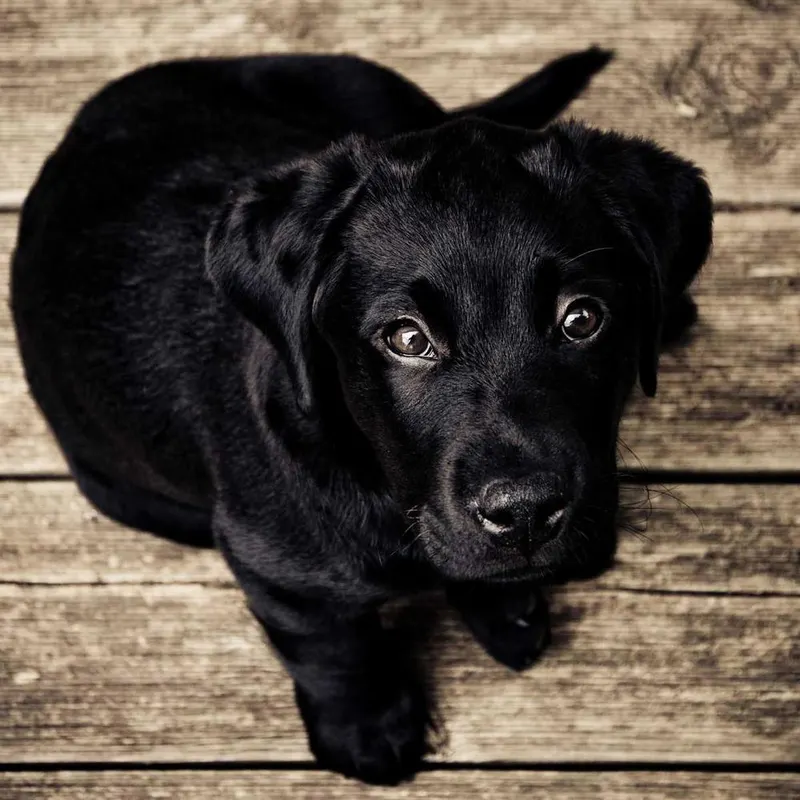
Drop, paste or pick a JPG, PNG or WebP. People, products, pets: anything works.
2
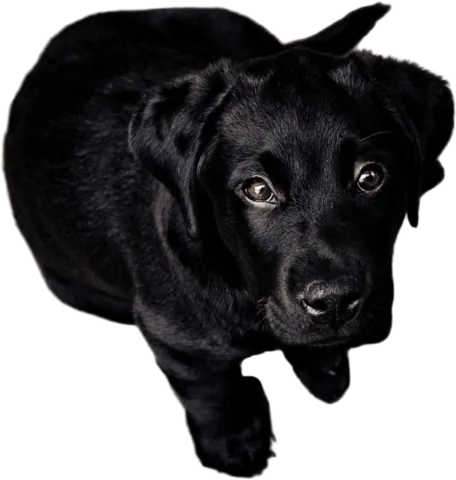
AI cuts it out
Our model finds the subject and removes everything else, keeping soft edges like hair and fur.
 PNG
3
Download your PNG
Get a full-resolution transparent PNG, ready for your store, slides or design tool.
What happens behind the scenes
- Your upload is checked and cleaned. We confirm it is a real JPG, PNG or WebP image, rotate it the right way up, and strip metadata such as camera details and GPS location.
- The AI finds the subject. A segmentation model trained on millions of images works out which pixels belong to the person, product or animal, and which belong to the background.
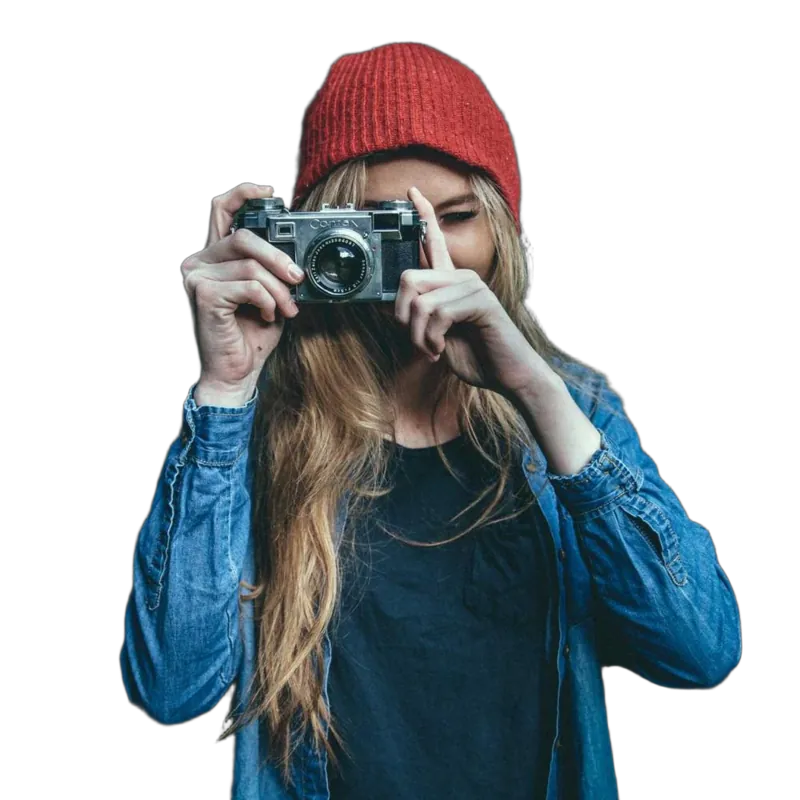
- Soft edges are kept soft. Instead of a hard on/off mask, the model produces smooth transparency, so hair, fur and blurred edges blend naturally into any new background.
- You get a transparent PNG. The result has the same size as your upload, up to 4000 px on the longest side, ready for any design tool.
Tips for the best result
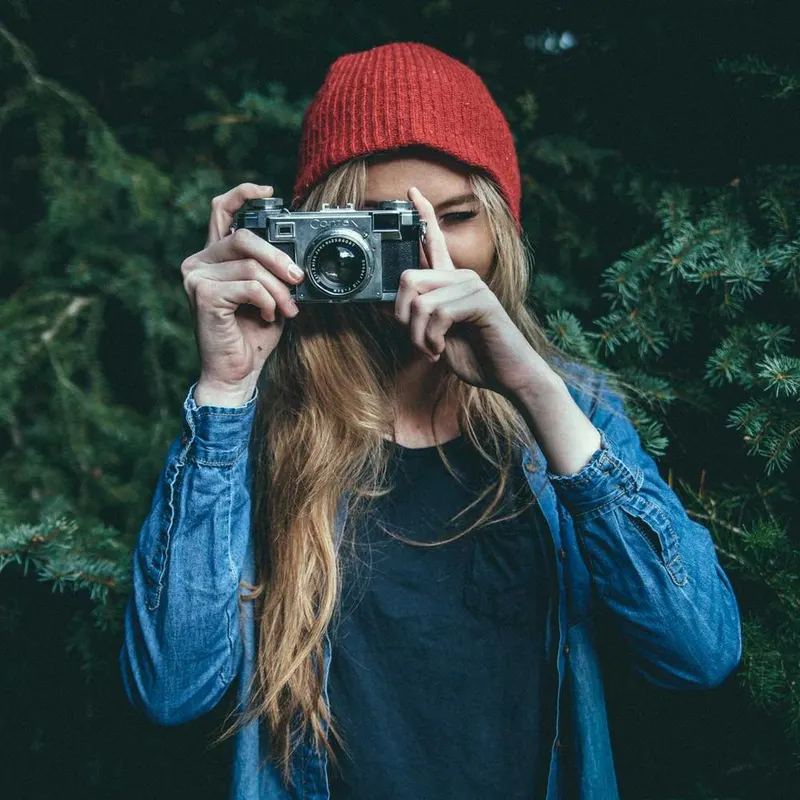
- Use a photo with one clear subject in focus.
- Good, even light gives the cleanest edges.
- Keep the whole subject in frame; cropped edges stay cropped.
- Upload the largest version you have, up to 15 MB.
Files and limits
| Formats you can upload | JPG, PNG, WebP |
|---|---|
| Maximum file size | 15 MB |
| Maximum resolution | 4000 px on the longest side |
| Result | Transparent PNG |
| Typical time | About 10 seconds |
| Storage | Deleted after 24 hours, or kept in your account until you delete it |