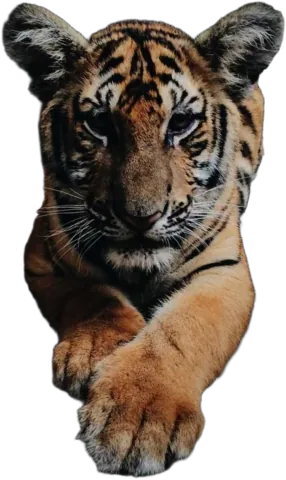
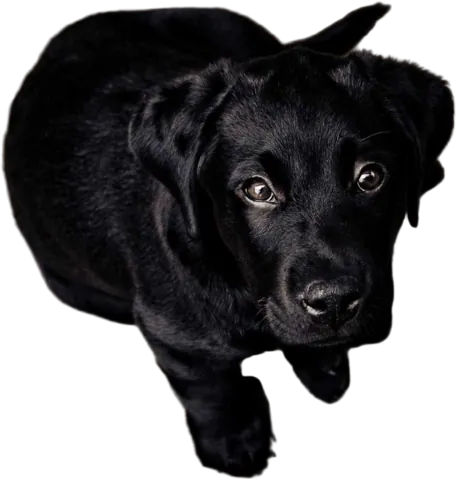
Swap the background, keep the subject
Your subject gets cut out automatically. Then it’s up to you what goes behind it: a color, a gradient, one of our photos, or a picture of your own.
Drop images here
or paste with Ctrl + V · up to 10 JPG, PNG or WebP images, 15 MB each
Upload images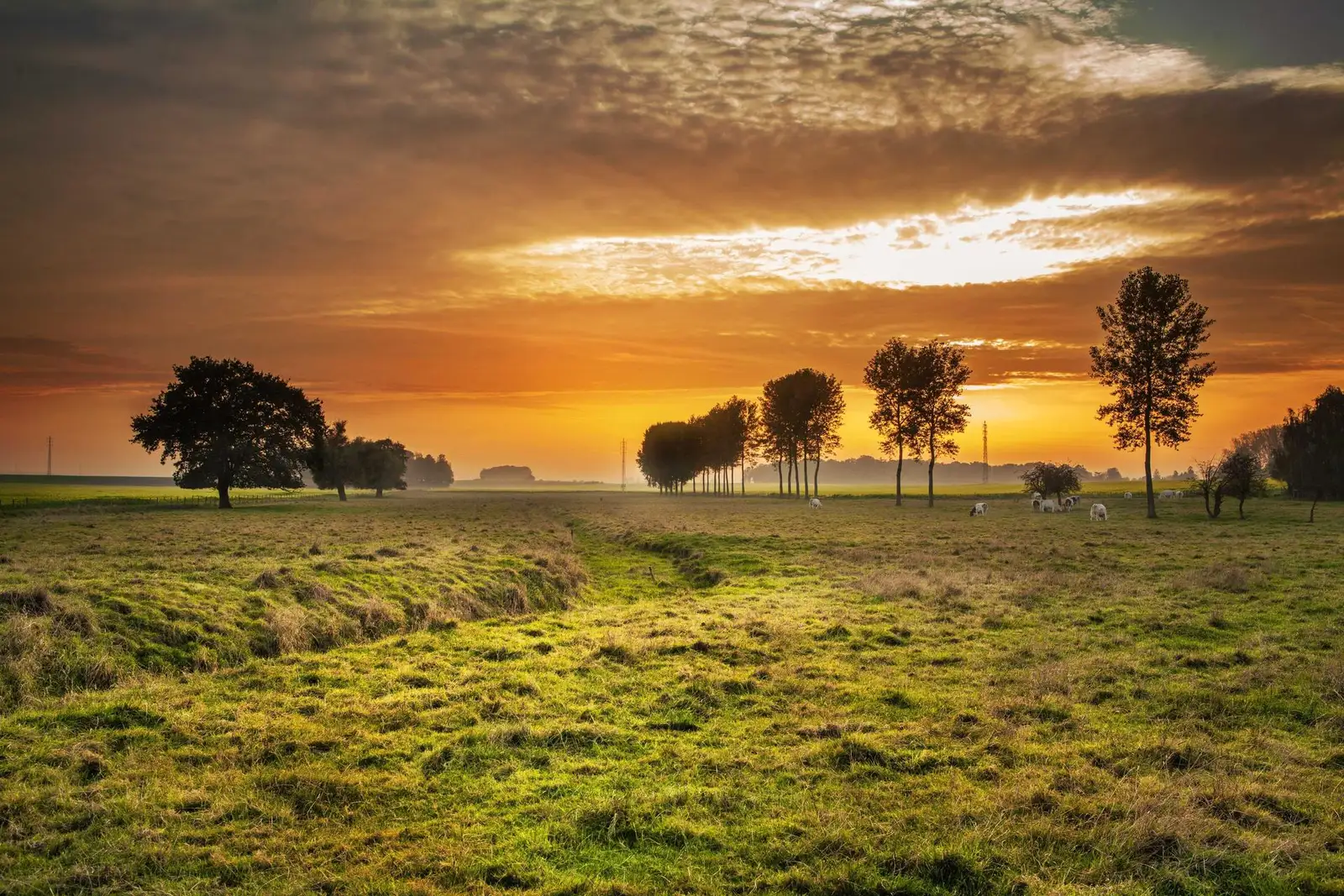
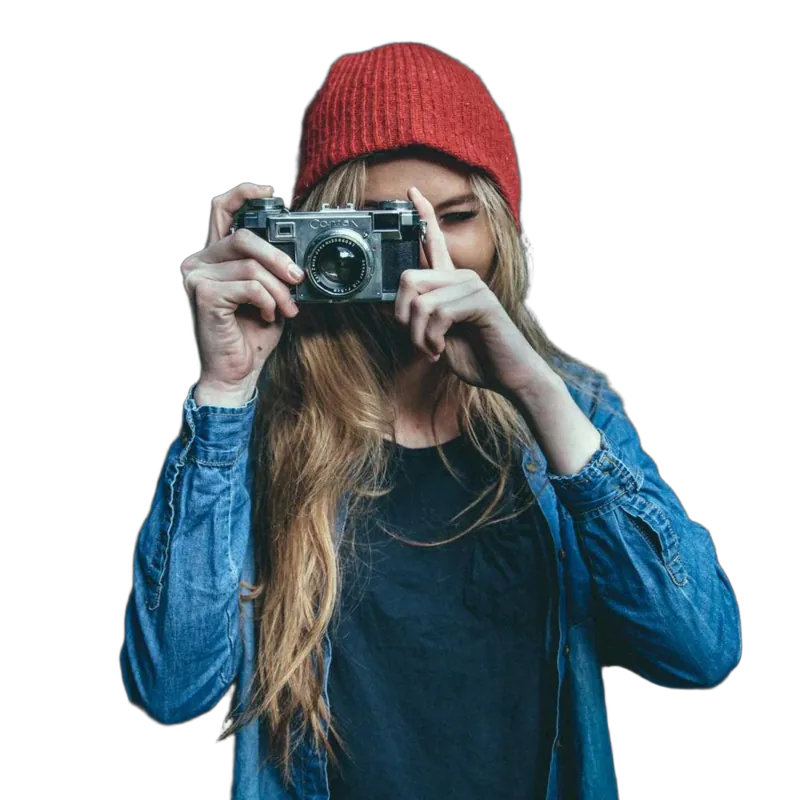 Background: sunset field
Five kinds of background
All in the editor’s Background tab. Click one, and the preview changes at once.
Solid colors
White, black, our yellow and nine more, plus a color picker for your exact brand color.
Gradients
Soft two-color blends that work well for profile pictures and social posts.
Photos
Twelve scenes, from a sunny field to a city street at night, ready to use.
Your own photo
Upload any picture as the background. Your office, a landscape, a product shot.
Transparent
No background at all, for when you’ll finish the design somewhere else.
The original
Changed your mind? Put the original back, and blur it if you like.
How to change a background
- 1
Upload your photo
The AI cuts out the person, product or pet in a few seconds.
- 2
Open the Background tab
Choose Photo for scenes and your own pictures, or Color for colors and gradients.
- 3
Fine-tune it
Blur a photo background, add a shadow, or adjust brightness, contrast and saturation so the subject matches its new scene.
- 4
Download
As a PNG or a JPG, at the full size of your original.
Making it look real
The fastest way to spot a fake background is light that doesn’t match. A person lit by a warm indoor lamp looks wrong on a cold snowy mountain. A few habits help:
- Match the light. Pick a scene with similar light to your photo, or nudge brightness and saturation in the Adjust tab until they agree.
- Blur the background a touch. Real cameras rarely have the subject and a distant background equally sharp. A little blur sells the depth.
- Add a shadow when the subject is standing on something. Without one, things float.
- When in doubt, use a color. A plain color or gradient never looks fake, because it never pretends to be a place.
Can I use my own photo as the new background?
Yes. In the Background tab, under Photo, click “Your photo” and pick any image from your device. Your subject is placed on top of it, and the background is scaled to fill the frame.
What backgrounds are included?
Transparent, twelve preset colors plus a picker for any color, a set of gradients, and twelve photos: a sunset field, the sea, a forest path, wooden boards, desert dunes, a city at night, snowy mountains, clouds, a cafe table, a city street, grass and a wheat field.
Can I go back to the original background?
Yes. “Original” is one of the background options, and every change can be undone with the undo button or Ctrl+Z.
Does changing the background reduce the quality?
No. The download is made at the full size of your upload (up to 4000 px), not at the size of the preview.
Can I blur the new background?
Yes, for photo backgrounds, including your own and the original. Use the Background blur slider under Background, then Blur.