Spend your evenings shooting, not masking
Clients ask for “just a white background” or “can you put us somewhere nicer?”. Background.ai does the cut-out in seconds, hair and all, so the job takes minutes instead of an hour with the pen tool.
Drop images here
or paste with Ctrl + V · up to 10 JPG, PNG or WebP images, 15 MB each
Upload images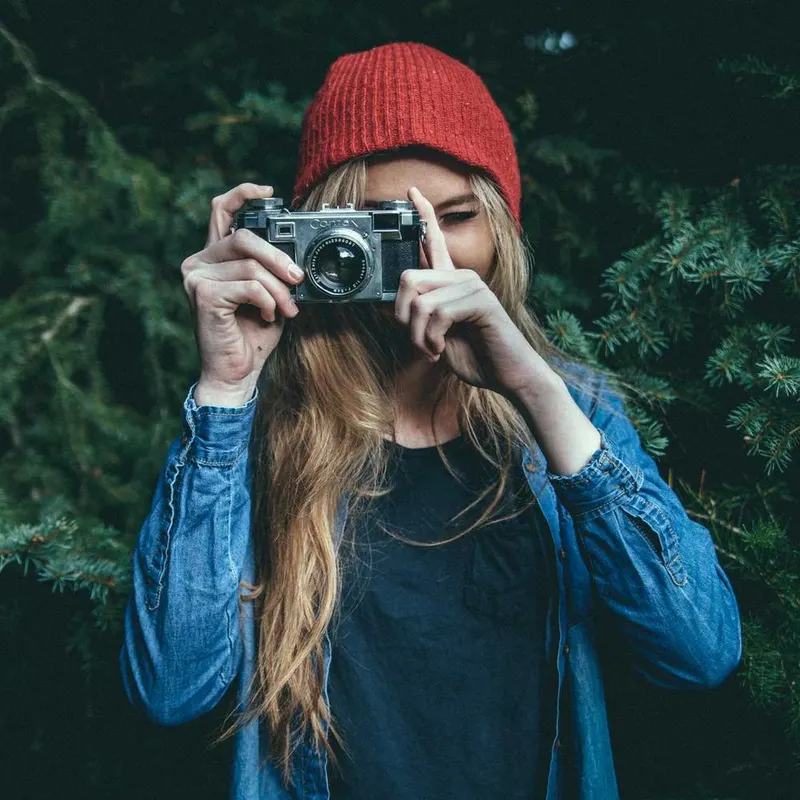
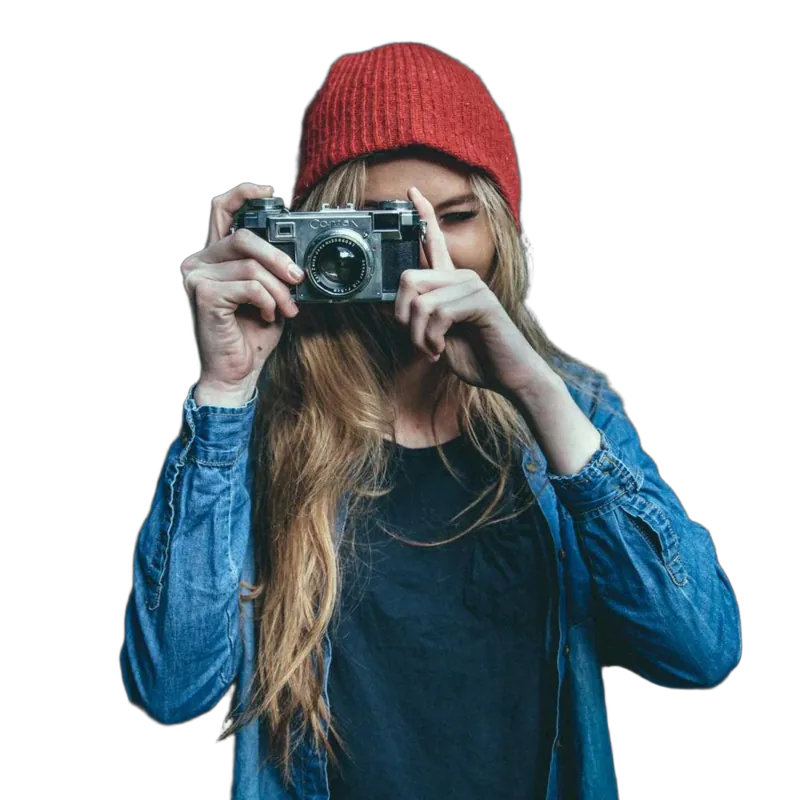
← drag to compare →
Where it saves you time
Not every shot needs a careful hand-made mask. These are the ones that usually don’t.
Headshots and team photos
Shot in five different offices? Put everyone on the same backdrop color so the team page finally matches.
Composites
Get a clean starting mask for a composite in seconds, then spend your time on light and color.
Small product jobs
Catalog shots on white for a local shop, without lighting a perfect white sweep.
Pet portraits
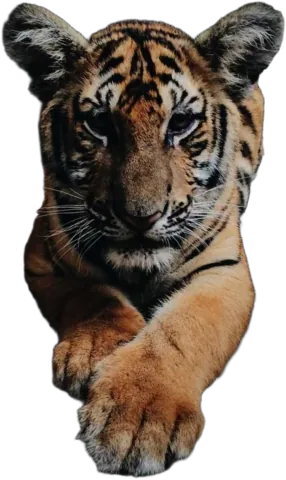
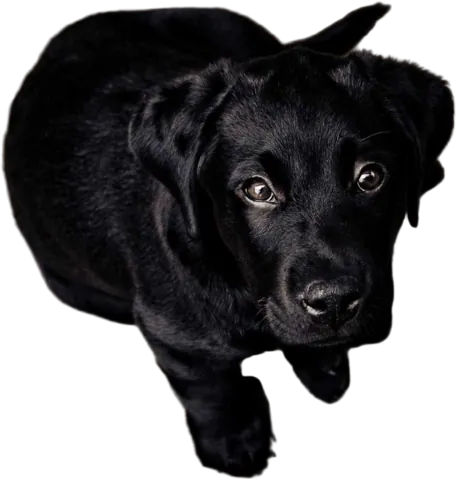
Fur is the classic masking nightmare. The model keeps it soft and natural.
Location fixes
A great portrait with a parked car behind it. Blur it or swap the background instead of reshooting.
Batches
Up to 10 images at once, each with its own edits and undo history.
An honest word about quality
We’re not going to tell you an AI beats a skilled retoucher on a magazine cover. For a hero image where every strand of hair is going to be printed a meter wide, you’ll still want to refine by hand.
But most work isn’t that. It’s twenty headshots for a company website, a product set for an online shop, a dog portrait for a birthday card. For those, the automatic cut-out is usually good enough to deliver straight away, and when it isn’t, the Magic Brush fixes the odd edge in a few strokes. Try it on a shot from your last job and judge for yourself. The preview is free.
A typical workflow
- 1
Export from your editor
Do your color and exposure first, then export a JPG at full quality.
- 2
Upload the set
Up to 10 images at once. The backgrounds come off in a few seconds each.
- 3
Check the edges
Use compare to flip between the original and the cut-out. Fix anything odd with Erase or Restore.
- 4
Choose the background
Transparent for further work in Photoshop, a color or gradient for headshots, or the client’s own photo.
- 5
Download and deliver
PNG keeps transparency; JPG is smaller for web delivery.
Can I upload RAW files?
No, export a JPG, PNG or WebP first (up to 15 MB). A high-quality JPG straight out of Lightroom or Capture One works perfectly.
What resolution do I get back?
The same as your upload, up to 4000 pixels on the longest side. Bigger files are scaled down to 4000 px before processing, which is plenty for web, social and most prints up to around A4.
How does it handle hair?
Well. The model keeps fine strands and flyaways as soft, partly transparent pixels instead of chopping them off. Very thin hair against a busy background of a similar color is the hardest case, and that’s where the Restore brush helps.
Can I use the results for client work?
Yes. Your photos stay yours, and so do the results. Use them in client deliveries, composites, prints and anything else.
Do you keep or train on my clients’ photos?
No. Uploads are processed on our own servers, never used for training, and deleted automatically 24 hours after upload. Metadata like camera details and GPS location is stripped on upload.
Useful for photographers
Magic Brush
Fix an edge in a few strokes. It only touches pixels that match the color you start on.
Blur background
Keep the subject sharp and soften everything behind it, like a portrait lens.
A professional headshot from a selfie
How to take the photo, cut it out and pick a background that works on LinkedIn.
Try it on a shot from your last job
Upload a photo and see the cut-out in a few seconds. No account needed to preview.
Upload image