Fix the bits the AI missed
Automatic cut-outs get most photos right. For the rest there’s the Magic Brush: paint over what should go (or come back), and it sticks to the color you started on instead of wandering into your subject.
Drop images here
or paste with Ctrl + V · up to 10 JPG, PNG or WebP images, 15 MB each
Upload images
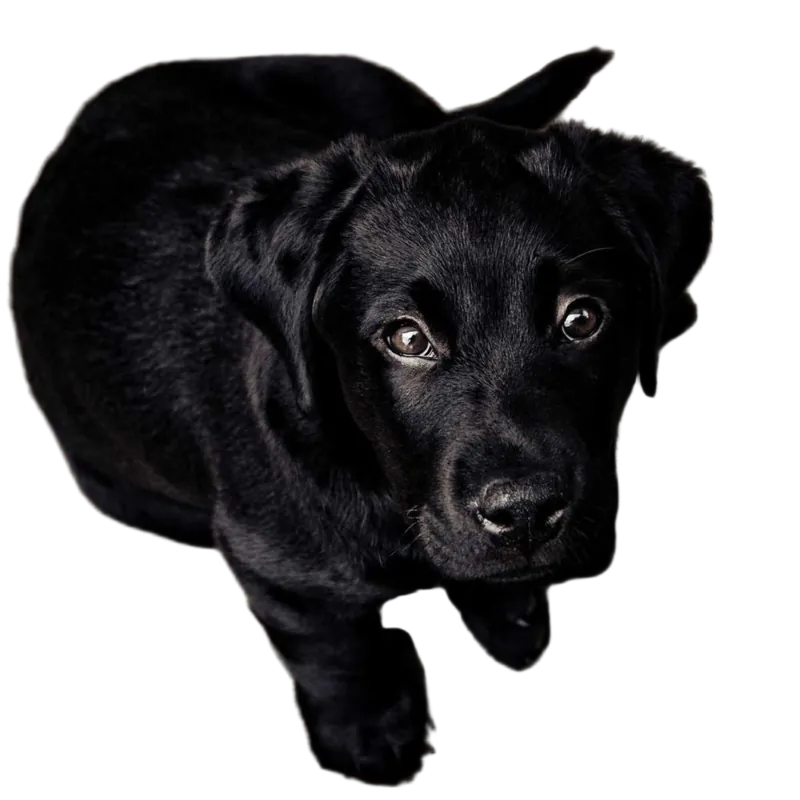 Cutout tab
The faded photo behind the puppy is what was removed
Why a “magic” brush?
No background remover is perfect. Sometimes a patch of floor survives between a dog’s legs. Sometimes the toe of a white shoe gets shaved off because the wall behind it was white too. Fixing that the usual way means zooming in and tracing with a tiny brush for ten minutes.
The Magic Brush takes a shortcut. The moment you start a stroke, it checks the color under your cursor in the original photo. From then on it only touches pixels that are close to that color. Start on the gray floor next to a white sneaker and drag right over the shoe: the gray goes, the sneaker stays.
You can be sloppy with it. That’s the whole point.
How to use it
It lives in the editor’s Cutout tab. Nothing to install.
- 1
Upload your photo
The background comes off automatically in a few seconds. Check the edges first. Often there’s nothing to fix.
- 2
Open the Cutout tab
Your original photo appears faintly behind the cut-out, so you can see exactly what was removed and what was kept.
- 3
Choose Erase or Restore
Erase removes leftover background. Restore paints back parts of your subject that went missing, straight from the original.
- 4
Start the stroke on the color you want to change
With Magic on, begin on the background color when erasing, or on your subject’s color when restoring. Then drag freely.
- 5
Nudge the sensitivity if needed
Low sensitivity only grabs near-identical colors. Turn it up when the leftover area has shading, grain or a gradient in it.
Magic brush
- Only changes pixels close to the color where your stroke started.
- Great for edges: shoes on floors, products on tables, hair against sky.
- Use a bigger brush than feels right. The color check stops it spilling.
Normal brush
- Changes everything under the brush, no color check.
- For subjects that match their background, like a black cat on a black blanket.
- Keep it small (the size goes from 6 to 120) and work along the edge.
A few things that help
- Fix the big stuff with Erase, the details with Restore. If the AI kept a chunk of table, erase it. If it nibbled the tip of an ear, restore it. Mixing both is normal.
- Press compare. The compare button in the toolbar shows the original, so you can check that nothing important went missing.
- Undo is per image. Working on several photos at once? Each one keeps its own history, so undoing on one never touches another.
- Your edits are kept in your browser. Close the tab by accident and the strokes are still there when you open the image again (within 24 hours, when every upload is deleted).
Once the edges look right, put the cut-out on a white background, a new scene, or keep it transparent.
What does the Magic Brush do differently from a normal eraser?
When you start a stroke, it reads the color under your cursor in the original photo. After that it only changes pixels that are close to that color. So you can drag it along an edge and it removes the background without biting into your subject.
Can I bring back something the AI removed?
Yes. Switch the brush to Restore and paint over the missing part. It copies the pixels back from your original photo, at full resolution.
When should I turn Magic off?
When the subject and the background are almost the same color, like a black dog on a dark sofa. The color check can’t tell them apart, so use the Normal brush at a small size and paint exactly where you want.
Do my brush strokes affect the full-size image?
Yes. Strokes are stored in the pixels of your original image, not the preview, so the download matches what you see on screen.
Can I undo a stroke?
Every image has its own undo history. Use the undo and redo buttons, or Ctrl+Z and Ctrl+Shift+Z (Cmd on a Mac).
Got an edge that needs fixing?
Upload the photo. The background comes off on its own, and the Magic Brush handles the rest.
Upload image