
A good headshot is mostly three things: soft light on your face, a sharp photo, and a calm background. The first two you can get with any phone. The third used to need a studio backdrop. Now you can replace whatever is behind you with a clean color afterwards.
1. Take the photo
- Face a window. Stand a step or two away from it, looking toward the light. It evens out your skin and puts a little sparkle in your eyes.
- Use the rear camera, and if you can, have someone else take it. Selfie cameras are lower quality and arm’s length distorts faces a bit.
- Camera at eye level, about two meters away, zoomed in slightly. Head and shoulders in the frame, with some space above your head.
- Wear something plain. Solid colors that are different from the background you plan to use. Avoid fine stripes.
- Take twenty. Seriously. Relax your shoulders, think of something funny, and pick the best one later.
2. Remove the background
Upload your favorite shot to Background.ai. The background is removed in a few seconds, and the AI keeps your hair, including the flyaways, as natural soft edges. If you uploaded a few takes, flip between them in the strip at the bottom and keep the one with the cleanest cut-out.
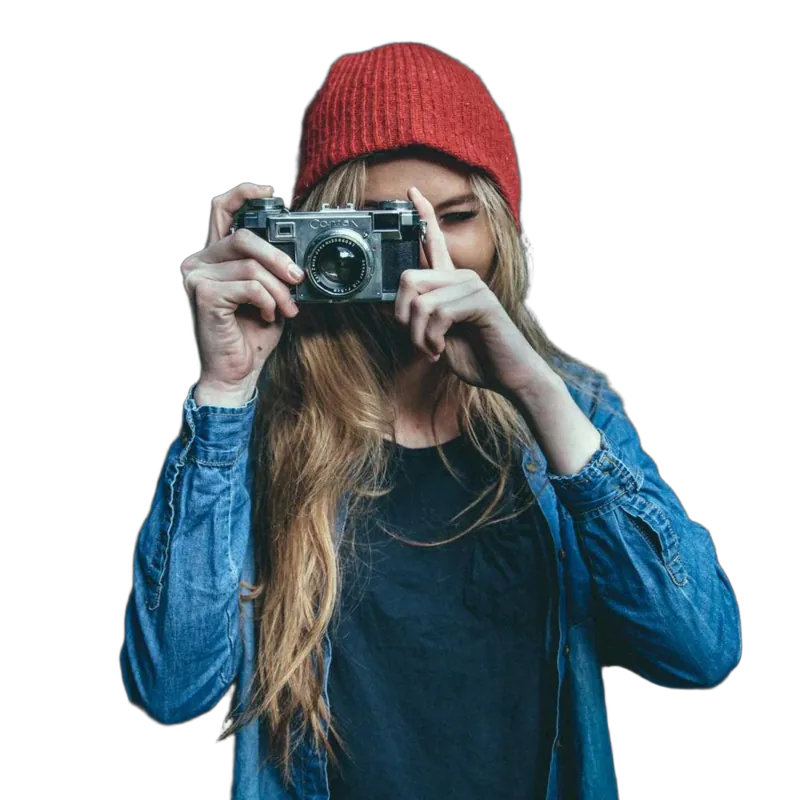 Soft gray gradient
3. Pick a background that works
In the Background tab you’ll find colors, gradients and photos. For headshots, simple wins:
- Light gray or off-white for a classic, corporate look.
- A soft gradient to mimic a studio backdrop.
- Your brand color (use the color picker) for a team page everyone shares.
- Your own office, blurred, if you want some context. Pick “Original” or upload a photo, then turn up the blur.
If the light on you looks warmer or cooler than the new background, adjust brightness and saturation in the Adjust tab until they feel like one picture.
4. Download and crop
Download a JPG. LinkedIn and most sites crop profile pictures to a circle or square, so check that your face sits roughly in the middle with space around it. If you’re doing a whole team, use the same background and the same crop for everyone.
Doing headshots for a lot of people? Read how photographers use Background.ai for team and batch work.