
The best background for a LinkedIn photo is a plain, neutral one: light gray, soft white, navy, or a muted blue or teal. It should be different enough from your hair and clothes that you stand out, and quiet enough that people look at your face, not behind you. A subtle gradient reads as “studio”. A busy room, a car interior or a cropped wedding photo reads as “I didn’t think about this”.
You don’t need a photographer to get there. Take a decent photo with a phone, remove the background, and put a clean color behind you. This guide covers which color to choose, how to take the photo, and the sizes LinkedIn uses.
Which background color should you choose?
There’s no official LinkedIn color, and no color will get you hired. What a background can do is make the photo look deliberate and keep attention on you. These are the usual choices and how they tend to come across:
| Background | How it comes across | Works well when |
|---|---|---|
| Light gray | Calm, classic, the safe choice | Almost always. It flatters most skin tones and separates you from LinkedIn’s white page. |
| Soft white / off-white | Clean, minimal, corporate | You’re wearing dark clothes. With a white shirt you can disappear into it. |
| Muted blue | Friendly and trustworthy; popular in finance, law and consulting | You want a little color without looking loud. |
| Navy or charcoal | Serious, confident, more dramatic | You have light hair or wear light colors, so you stand out against it. |
| Soft teal or green | Fresh, a bit more creative | Design, marketing, health, education. |
| Brand color | Part of a team look | Everyone at the company uses the same one. |
| Blurred office or outdoors | Approachable, gives some context | The blur is strong and the scene is calm. |
Two practical checks matter more than color theory. First, contrast: dark hair on a dark background loses its outline, and blond hair on pale yellow does the same. Second, the thumbnail test: LinkedIn shows your photo tiny in comments and search results. Shrink it down and see if you’re still the first thing you notice.
LinkedIn profile picture size
400 × 400 pixels is the size most guides recommend, and LinkedIn crops the picture into a circle. Because screens keep getting sharper, upload a bigger square, around 800 × 800 px or more, and let LinkedIn scale it down. Keep your face in the middle with some space above your head, so the circle doesn’t clip your hair.
Don’t mix this up with the background photo, the wide banner across the top of your profile. That’s a separate image, recommended at 1584 × 396 px, and it’s a good place for a city skyline, your company’s visual or a simple pattern. This guide is only about what’s behind you in the round photo.
Taking the photo with a phone
- Face a window. Stand a step or two back from it and look toward the light. Soft daylight evens out your skin and puts light in your eyes. Avoid lamps overhead, which put shadows under your eyes.
- Use the rear camera and ask someone else to take it. The selfie camera is lower quality, and arm’s length slightly distorts faces.
- Camera at eye level, about two meters away, zoomed in to 2x if your phone allows. Head and shoulders in the frame.
- Wear solid colors that differ from the background you plan to use. Fine stripes and busy patterns flicker at small sizes.
- Take twenty shots. Relax your shoulders, breathe out, think of something mildly funny. Pick the best one later.
Don’t worry about what’s behind you. A plain-ish wall helps the cut-out, but a kitchen or an office is fine, because you’re about to replace it.
How to change your LinkedIn photo background
- 1
Upload the photo
Pick your best shot and upload it to Background.ai. The background is removed in a few seconds, and hair, including flyaways, is kept as soft edges.
- 2
Check the edges
Use the compare button to flip between before and after. If a bit of the room is stuck to your shoulder, erase it in the Cutout tab.
- 3
Choose a background
In the Background tab, Color has 12 colors, a picker for any color, and 8 gradients. The soft ones are the quickest way to a studio look.
- 4
Or keep your own background, blurred
Open Blur and turn up Background blur. With no new background picked, it blurs the original behind you, like portrait mode on a phone.
- 5
Match the light
If you look warmer or cooler than the new background, nudge brightness and saturation in the Adjust tab.
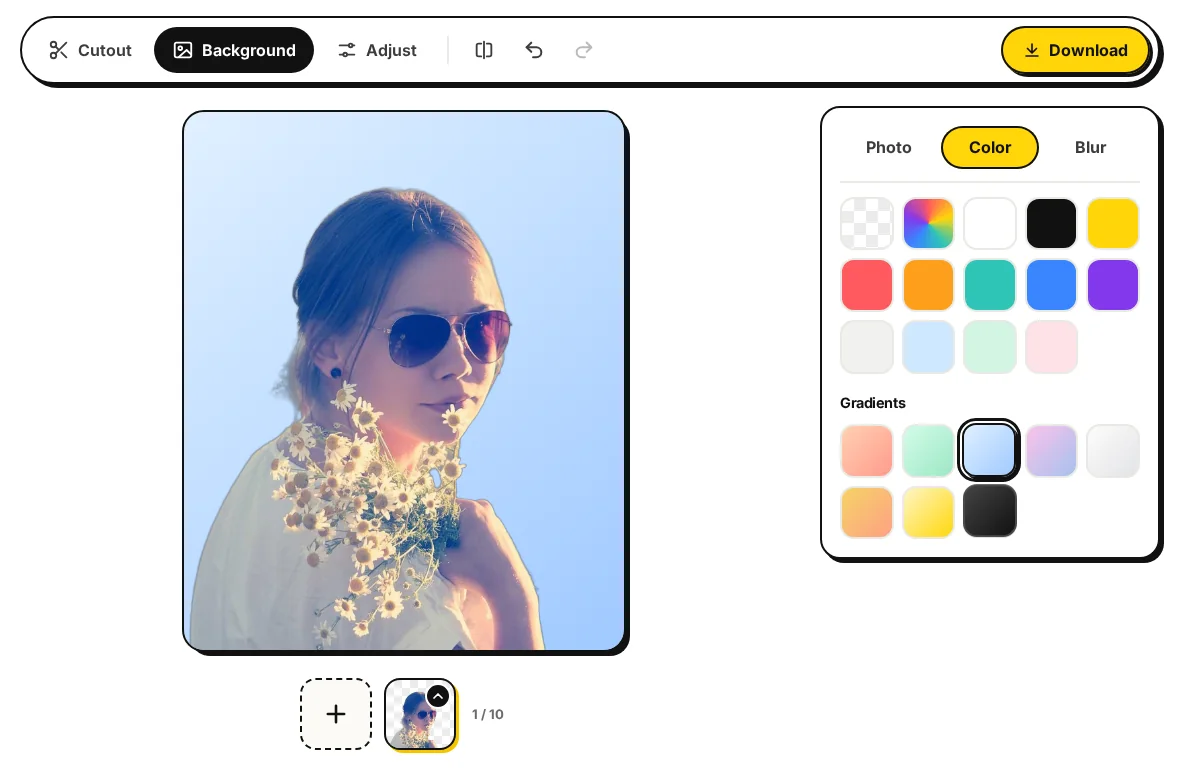
Then download a JPG and crop it to a square with your face in the center. Downloading needs full access ($0.99 for the first 7 days, then $39.99 a month until you cancel); removing the background, trying backgrounds and previewing are free, with no account.
Getting a whole team to match
A team page where everyone was photographed in a different place looks like a collage. You don’t need to book a photographer for everyone on the same day to fix it. Ask everyone for a phone photo taken facing a window, upload up to 10 at a time, and put every one of them on the same background: one gray, one gradient, or your brand color typed into the color picker. Crop them all the same way (same head size, same space above) and the page suddenly looks planned.
Common mistakes
- Too much background, too little face. Your face should take up most of the circle.
- Heavy filters. Smoothed skin and dramatic color grades look odd next to everyone else’s natural photos.
- A background brighter than you. If the background is lit and your face isn’t, the eye goes to the wrong place. Lower the background’s brightness or raise yours.
- An old photo. If you’ve changed your hair or glasses, people should recognize you on a video call.
Doing headshots for a lot of people? The page for photographers covers batch work, and blur background explains the blur in more detail.